AI Image Maker: Turn Ideas and References into Striking Visuals
Turn a prompt, rough concept, or reference image into a distinctive visual. Choose an image model for the job, define the subject and composition, guide the result with references when needed, and create campaign art, product scenes, editorial images, or reusable assets in one AI Image Maker workspace.
One Reference Photo, Two Visual Directions
Upload one clear portrait, then use the AI Image Maker to change the setting, wardrobe, lighting, and rendering style while keeping the person recognizable. Both results below were created from the same source photo.
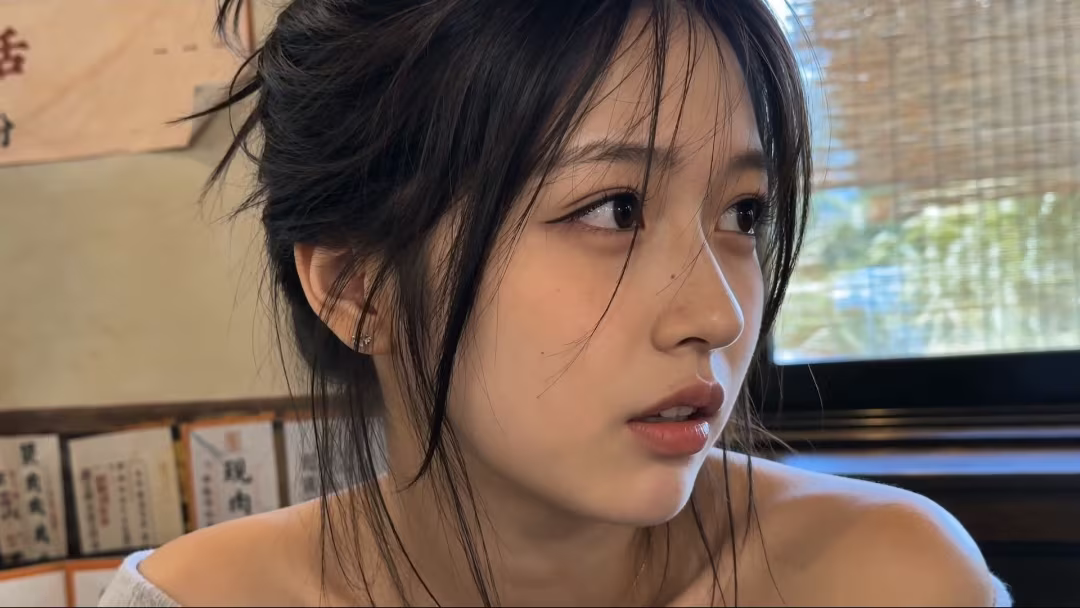
Original reference
Reference Image + Prompt
The same source portrait anchors the person's recognizable features in both generations.
Prompt direction 01
Preserve her identity. Create a candid rainy-night street portrait with casual streetwear, neon bokeh, and natural photography.
Prompt direction 02
Use the same face as reference. Reimagine her as a yellow-and-black anime fashion editorial with graphic accessories and cel shading.
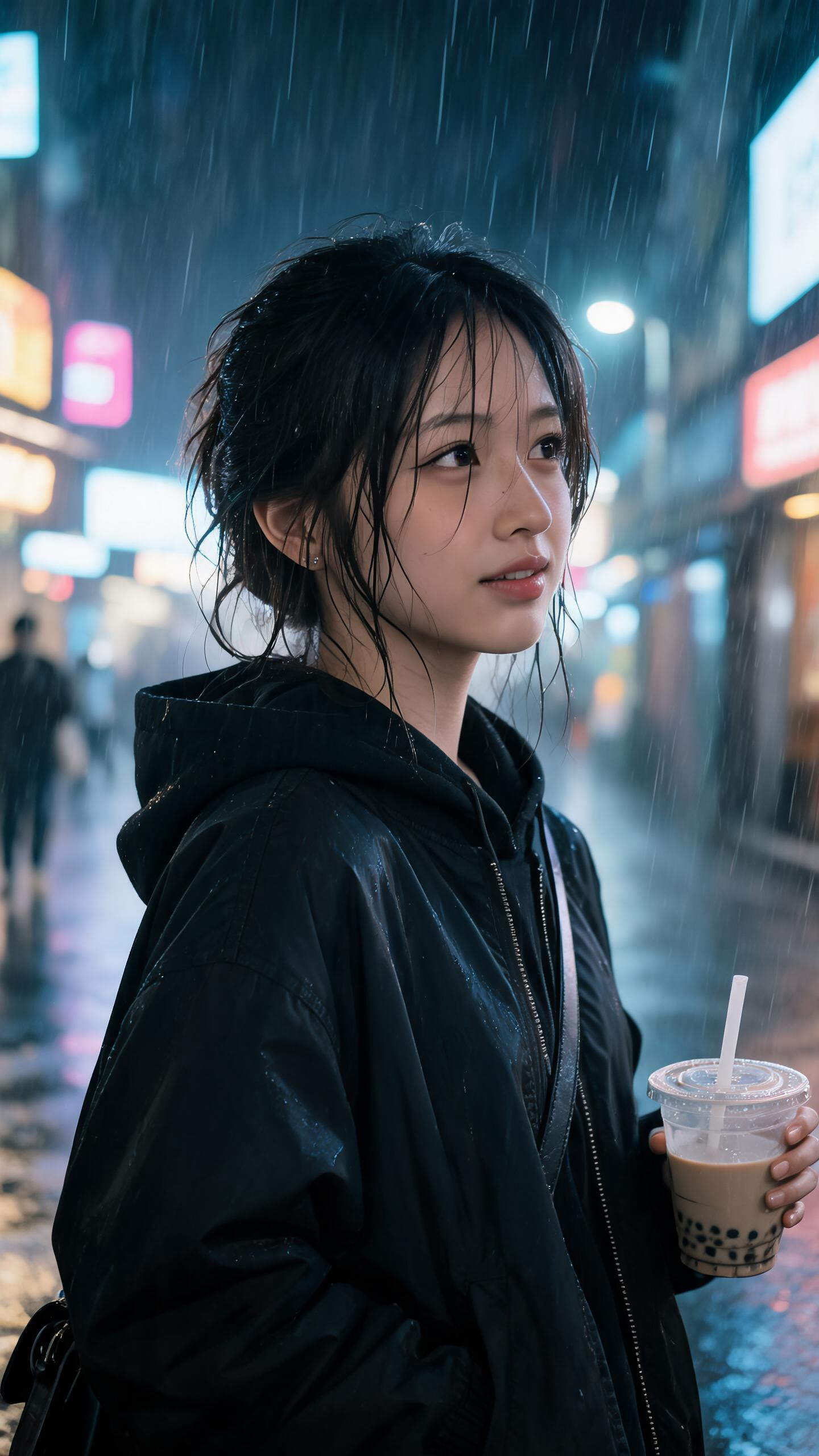
Generated result 01
Cinematic Street Portrait
The model preserves the recognizable subject while introducing rain, neon light, casual streetwear, a wider crop, and a candid photographic mood.
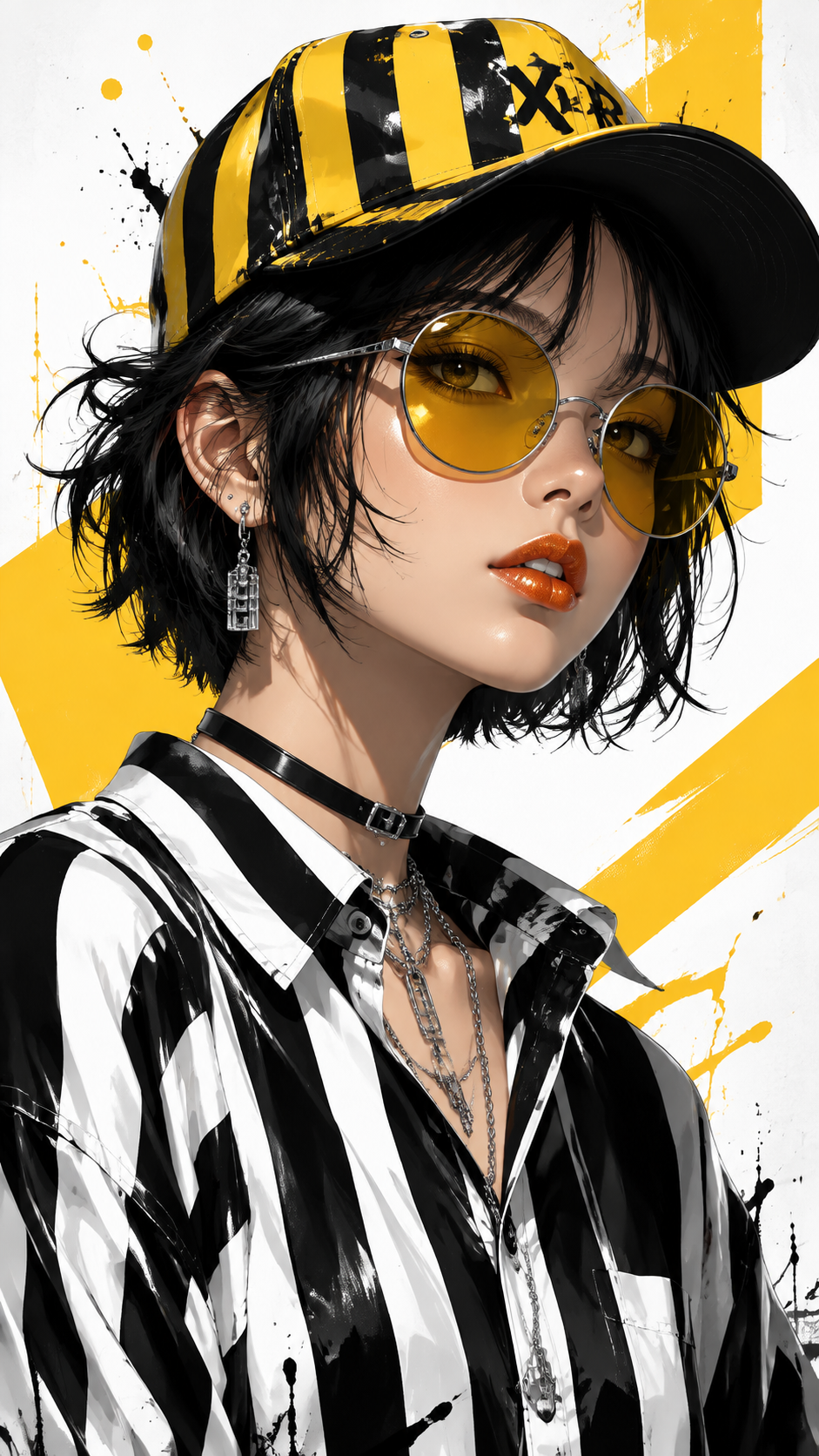
Generated result 02
Anime Fashion Portrait
The same reference becomes a graphic fashion illustration with yellow-and-black styling, new accessories, cel shading, and an editorial composition.
Choose an AI Image Model for the Visual Job
The best model is the one that matches the current deliverable. Seedance25 groups several image families in one workspace, but their strengths, reference limits, resolutions, text behavior, speed, and cost differ. Start with the job, then compare compatible controls in the live generator.
Fast Concepts and Prompt Exploration
Use lightweight options such as Z-Image or Nano Banana 2 Lite for quick previews, broad visual exploration, and lower-cost iteration. Move to a more specialized model after the subject, composition, and direction are clear.
Product and Commercial Visuals
GPT Image 2 and Flux 2 Pro are configured for realistic detail, product-oriented work, text, editing, and reference control. Verify packaging, geometry, labels, reflections, and brand details before publishing.
Posters, Layouts, and Visible Text
Ideogram V3 specializes in graphic-design and text-led outputs, while Seedream 5 Pro supports multilingual layouts and infographics. Generated text still requires a full-size spelling and legibility check.
Multi-Reference Creation and Editing
Seedream, Nano Banana, GPT Image, and Flux configurations can accept supported references. Use them when a subject, product, layout, or visual direction should guide the next image instead of beginning from language alone.
Give Every Reference a Clear Role
Use one image for the product's appearance, one for composition, and one for visual style. Naming each role in the prompt helps AI Image Maker combine the references without copying every detail.
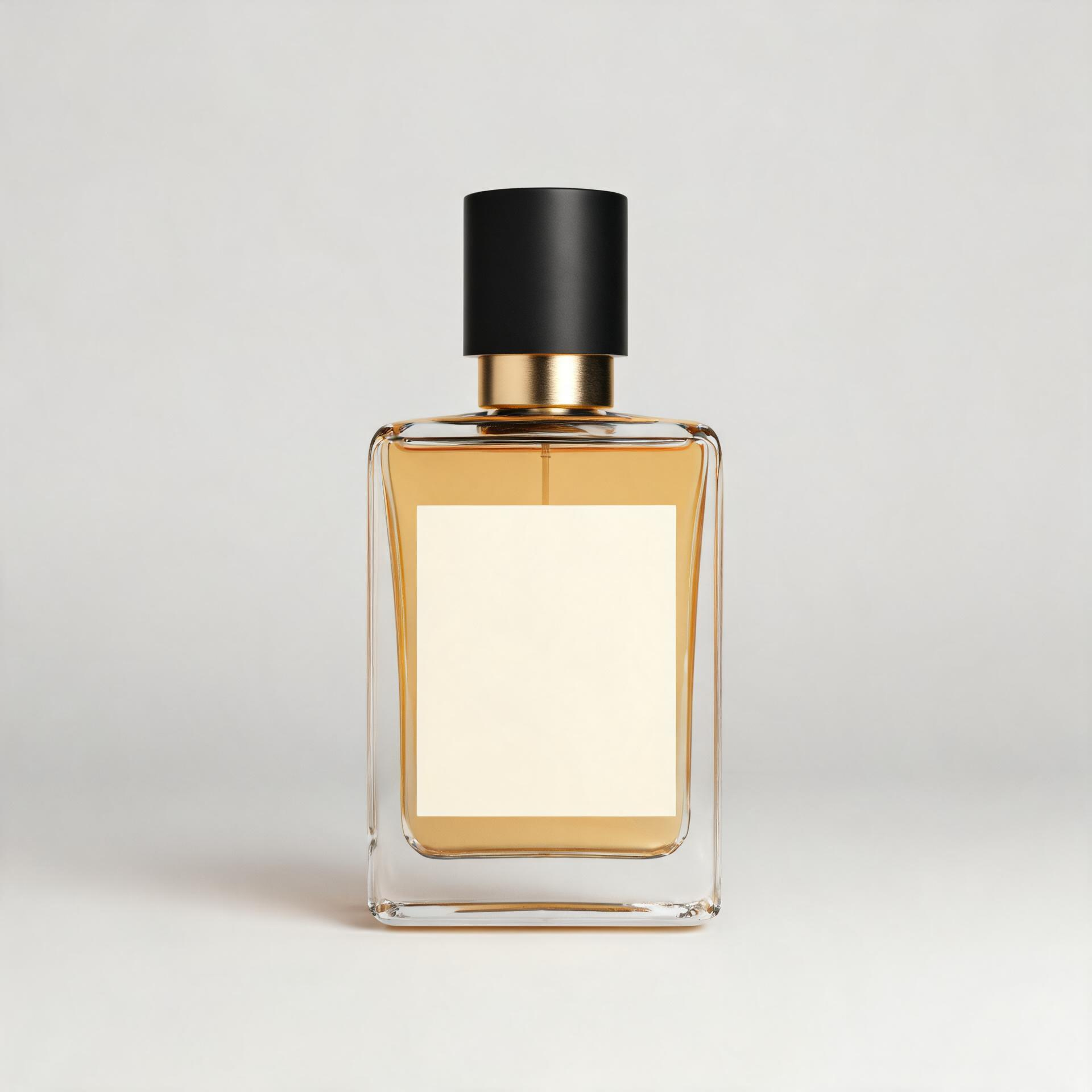
01 · Product reference
Bottle Shape and Details
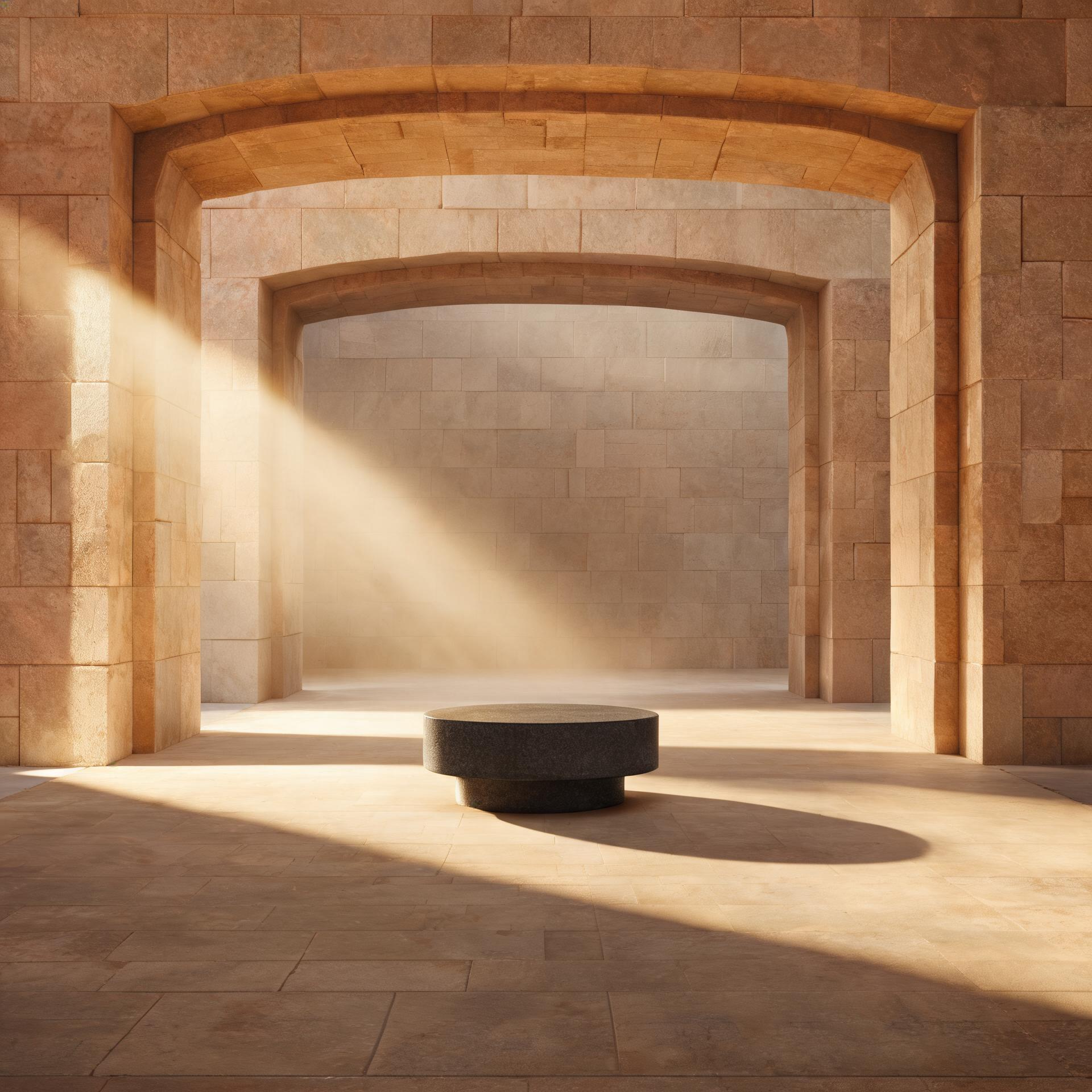
02 · Scene reference
Architecture and Pedestal
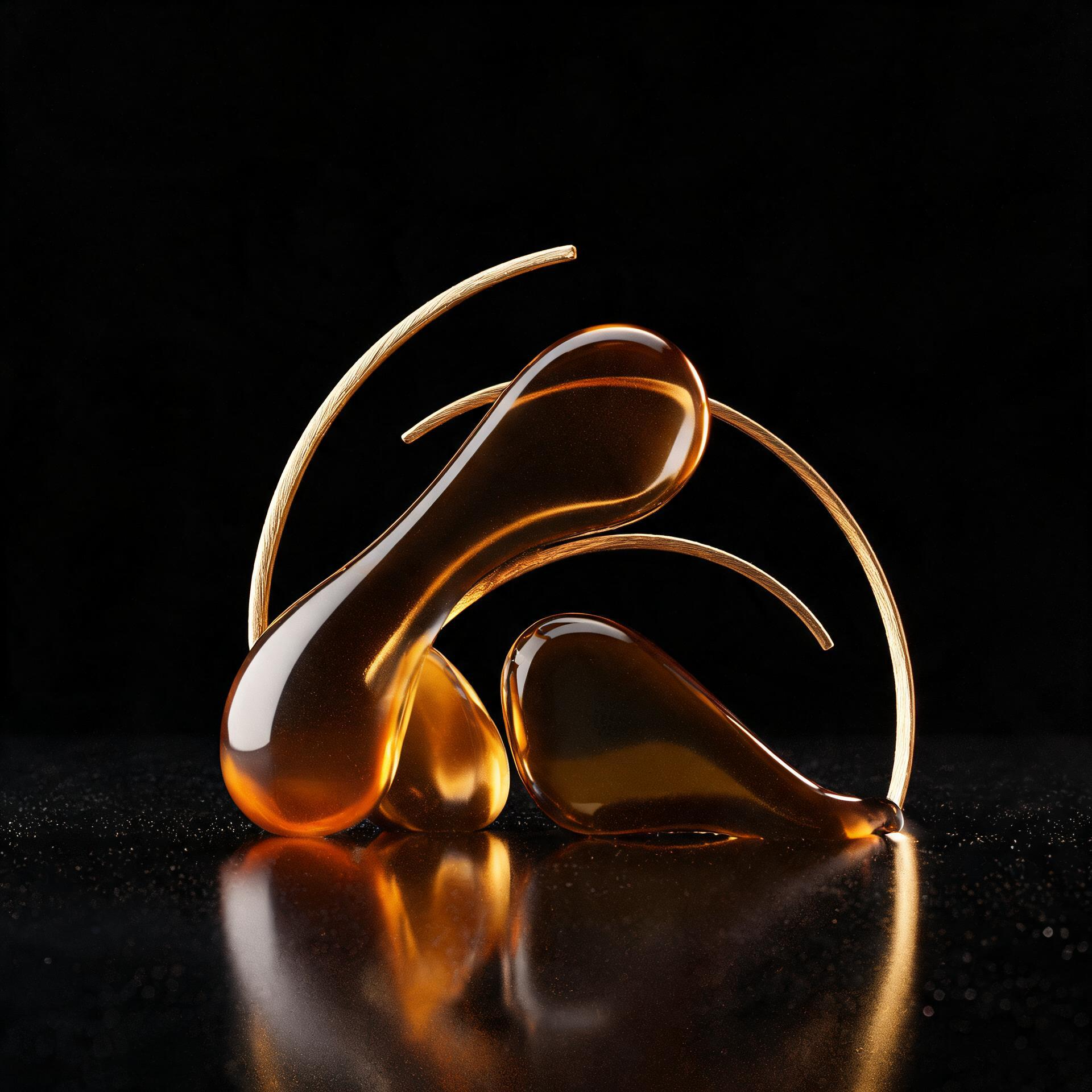
03 · Style reference
Black, Amber, and Gold
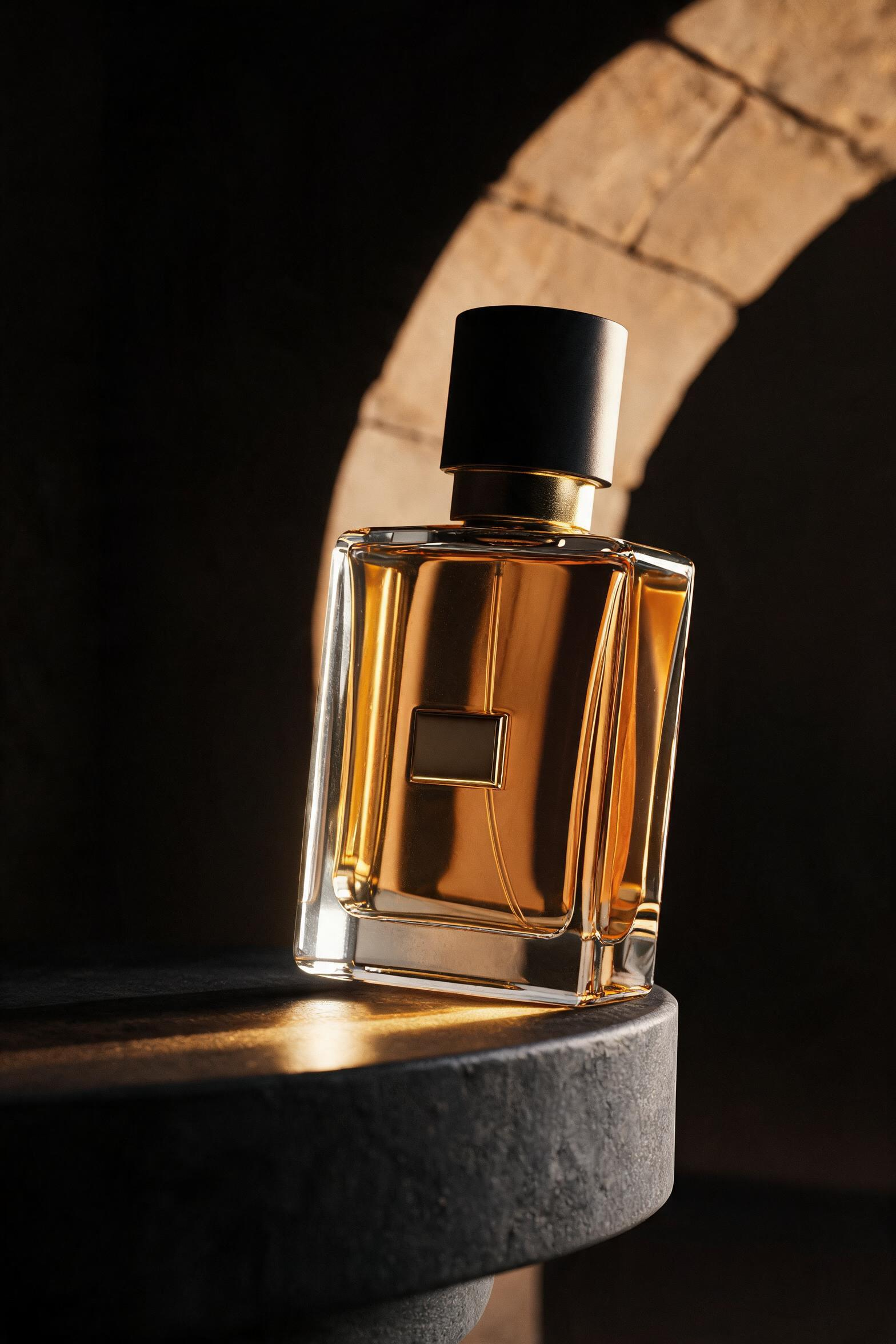
Generated result
One Cohesive Campaign Image
The final image preserves the bottle, borrows the architectural setting, and applies the darker amber-and-gold lighting without literally merging the three source images.
Describe the Image You Want
Start your AI Image Maker prompt with the subject, then describe composition, lighting, color, and style. Add the aspect ratio and explain any references you want the model to use.
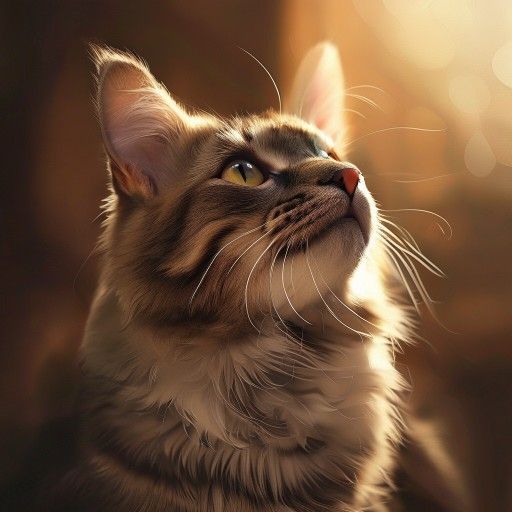
Cat portrait prompt example
Close-up portrait of a long-haired tabby cat looking upward into warm afternoon light. Three-quarter angle, eyes and whiskers in crisp focus, soft golden rim light around the ears, shallow depth of field, gentle amber bokeh, natural fur detail, calm cinematic mood, square composition.
- Start with the main subject and its action or state so the model knows where to place detail.
- Use practical composition terms: close-up, wide scene, centered product, low angle, overhead view, or left-side negative space.
- Replace vague style words with visible evidence—lighting, lens feel, materials, palette, contrast, and texture.
- Tell the model whether a reference controls identity, product shape, pose, layout, color, or style.
Check the AI Image at Delivery Size
A strong thumbnail can hide errors that matter in production. Open the result at the size and crop where it will be used, then review the focal point, fine details, text, brand accuracy, source rights, and any factual information before publishing.
Faces, Hands, Edges, and Geometry
Inspect eyes, fingers, teeth, repeated patterns, reflections, object connections, product proportions, and small background elements. Correct errors that reduce trust or distract from the subject.
Focal Point and Final Crop
Confirm that the subject remains readable in the destination ratio and that important content is not too close to an edge, hidden by interface elements, or competing with planned typography.
Generated Text and Brand Details
Read every visible word at full size and verify logos, labels, packaging, symbols, and interface fragments. Replace critical text in a design tool when exact language is required.
References, Rights, and Accuracy
Make sure you can use every uploaded source and that the result does not introduce protected characters, private data, misleading claims, or trademarks that were not part of the approved brief.
Frequently Asked Questions About AI Image Maker
Help with model selection, accounts, credit costs, image sizes, and refining your results.
Keep Creating
Return home, start a new creation, or turn your next visual into motion with AI Video Maker.
Start Creating with AI Image Maker Today
Bring a clear visual idea or reference, choose the image model and ratio that fit the destination, and create a new direction in one connected workspace. Seedance25 keeps prompts, references, settings, results, and reusable assets close together for faster iteration.
Create an AI Image